
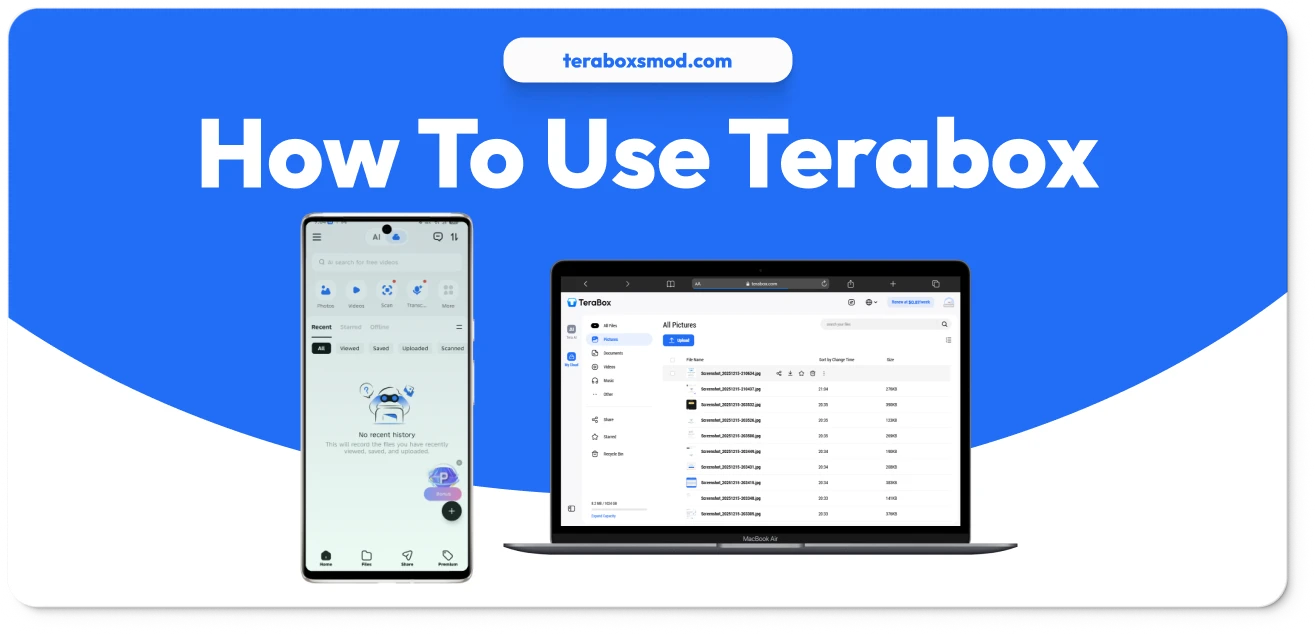
How to Use Terabox in 2026 | Complete Guide to Free 1TB Cloud Storage

We have all been there: you are trying to record a video of a special moment, or maybe download a new game, and your phone freezes. The message pops up: “Storage Full.” It is frustrating, annoying, and often happens at the worst possible time. While buying a new phone or an expensive SD card is one solution, the smarter choice is using cloud storage.
Terabox has become the go-to solution for millions of users worldwide because it offers what no one else does: 1024 GB (1 TB) of free storage for life. But having 1TB is one thing; knowing how to use it effectively is another. Whether you are a complete beginner or looking to master advanced features like Remote Upload and Personal Vault, this guide will walk you through every single step. By the end of this article, you will be a Terabox expert, managing your digital life with ease and efficiency.

What is Terabox and Why Should You Use It?

Before diving into the “How-To,” it is essential to understand the tool. Terabox is a secure cloud storage service that lets you save photos, videos, documents, and other files on the internet rather than on your device’s internal memory.
Think of it as a digital safety deposit box. Once you upload a file to Terabox, you can delete it from your phone to free up space, yet still access it instantly from any device—be it an iPhone, Android, or PC. It is perfect for backing up photo libraries, sharing massive video files that are too big for email, and protecting your data from device theft or damage.
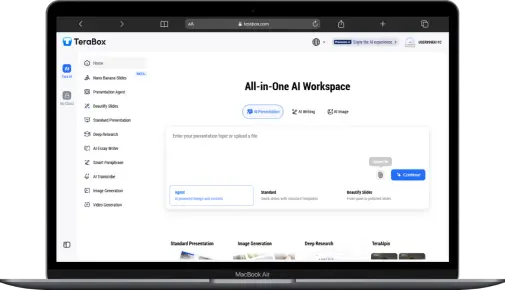
TeraBox Mod APK cloud storage interface for saving photos, videos, and documents securely

Creating Your Terabox Account

To unlock your free 1TB, you first need a “key”—your account. Terabox makes the sign-up process incredibly simple and supports multiple login methods for your convenience.

Sign Up Methods

  • Download the App: Install Terabox from the Google Play Store (Android) or App Store (iOS). For PC users, visit terabox.com.
  • Choose Your Method: You will see options to sign up using Google, Facebook, Email, or Phone Number.
  • Verification: If you sign up via email, check your inbox for a verification code. Enter it to activate your account.
  • Claim Storage: Once logged in, you might be asked to click a button to “Claim your 1024GB.” Do it immediately!

How to Upload Files and Folders

Now that you have the space, it is time to fill it up. Uploading is the process of moving files from your device to the Terabox cloud.

Uploading on Android & iOS

  • Open the Terabox app on your phone.
  • Look for the “+” (Plus) icon, usually located at the bottom right corner of the screen.
  • Select the type of file you want to upload: “Photos,” “Videos,” or “Files” (for documents).
  • Browse your gallery and tap the items you want to save. You can select hundreds at once.
  • Tap “Upload”. You will see a progress bar. Once it hits 100%, your files are safe in the cloud.

Uploading on PC (Web & Desktop App)

Managing files on a computer offers more control.

  • Drag and Drop: The easiest way is to open Terabox (Web or App), locate the file on your computer, and simply drag it into the Terabox window.
  • Folder Upload: On the PC app, click the “Upload” button and select “Upload Folder.” This is a powerful feature that lets you upload an entire directory structure (e.g., “Summer Vacation 2024”) without losing the organization of your sub-folders.
  • Limited collaboration and productivity features
  • Ad-supported experience on free plans

Enabling Auto-Backup for Photos

  • Open the app and tap on your Profile Picture (top left).
  • Select “Automatic Backup” from the menu.
  • Toggle the switch for “Automatic Photo Backup” to ON.
  • Note: In the free version, automatic video backup is usually a paid feature (unless you are using the Mod version).
  • Efficiency Tip: Set “Upload using Cellular Data” to OFF if you have a limited data plan. This ensures backups only happen when you are connected to Wi-Fi.

How to Share Large Files

Terabox is one of the best tools for sharing large files because it supports file transfers up to 20GB—far more than Gmail (25MB) or WhatsApp (100MB).

Generating Shareable Links

  • Locate the file or folder you want to share inside the app.
  • Tap the “Share” icon (usually looks like three connected dots or an arrow).
  • Choose “Copy Link”.
  • Security Settings: Before copying, you can choose to set an expiration date (e.g., “Link expires in 7 days”) or set a “Private Link” which requires a password (extraction code) to open.
  • Paste the link into WhatsApp, Messenger, or Email to send it to your friend. They can download the file even if they don’t have the Terabox app!

Advanced Features You Should Know

To truly master Terabox, you should use these “Power User” tools that distinguish it from basic storage apps.

Remote Upload (Save from Links)

This is a magical feature. If you have a download link for a movie or file from another website (HTTP/HTTPS/Magnet link), you don’t need to download it to your phone first.

  • Tap the “+” icon and select “Remote Upload”.
  • Paste the download link.
  • Terabox will download the file directly to your cloud account using its own servers. This saves your mobile data and happens instantly for many files!

Personal Vault (Secure Your Data)

For sensitive files like ID cards or private photos:

  • Go to the “Safe” or “Personal Vault” icon in the app.
  • Set up a 4-digit PIN or enable FaceID/Fingerprint.
  • Move files here. Once inside, these files are encrypted and cannot be seen in the main gallery. Even if someone steals your phone and opens Terabox, they cannot enter the Vault without your specific code.

How to Download Files from Terabox

Retrieving your files is just as easy as uploading them.

Downloading to Device
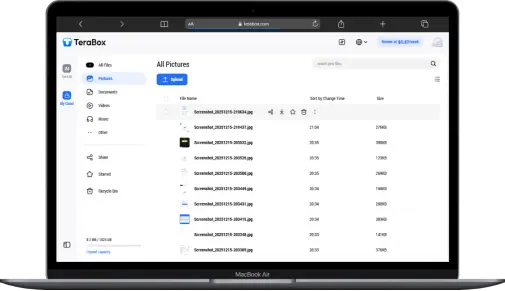
  • Navigate to the file you want to retrieve.
  • Long-press the file to select it (you can select multiple).
  • Tap the “Download” button.
  • The file will be saved to your device’s internal gallery or “Downloads” folder.
  • Troubleshooting: If speeds are slow, try downloading one file at a time or check your internet connection.
TeraBox Mod APK download process showing file selection and save to device

Terabox FAQ Common Questions

Yes! You can log in to your account on your phone, tablet, and PC simultaneously. Any change you make on one device (like deleting a photo) will instantly reflect on all others.

This is critical—do not forget it. For security reasons, Terabox makes it very difficult (often impossible) to reset the Vault password without wiping the data inside it. This ensures absolute privacy.

The 1TB storage is 100% free. They make money by showing ads. If you want to remove ads and get 2TB storage, you can upgrade to Premium (or explore the Mod options mentioned in our other guides).

Use a stable Wi-Fi connection, upload while charging, and back up files during off-peak hours.

Terabox Conclusion

Learning how to use Terabox effectively is like unlocking a superpower for your digital life. You no longer have to worry about limited phone storage, you can share massive files with a single click, and you have a secure, automated backup system protecting your memories 24/7.
Whether you are a student saving assignments, a parent archiving family videos, or a professional managing work documents, Terabox provides the tools you need. Start by setting up your Automatic Backup today—your future self will thank you when you never lose a precious photo again.

Emilia Isobel Euphemia Rose Clarke MBE is an English actress, best known for her role as Daenerys Targaryen in the HBO fantasy series Game of Thrones, for which she received nominations for four Primetime Emmy Awards.

Emilia Clarke

Written by Emilia Clarke, an SEO specialist with more than a decade of experience reviewing tech apps and optimizing digital content. Emilia Clarke has hands-on experience testing a wide range of TeraBox mods, including 2026-focused evaluations on modern devices to assess compatibility and real-world performance.